Right now it is a royal pain to switch from say chips to cards. And yet one (cards) is simply an organised array of chips whereas chips are randomly strewn about haphazardly and not organised into neat little columns. Yes, I would just like to have my menu choices in tidy columns (like in a regular restaurant app) but instead of switching between chips and cards on the style menu I have to completely re-write the logic of how the menu item gets added to the order. Really?? Is that necessary when all you are adjusting is a presentation style? Very frustrating and time consuming. Just saying.
I think it would be helpful if you shared screenshots of what you mean.
To me a chip is a type of choice component and a card is a type of collection.
Hi Nathan,
It is the difference between this layout

And this layout (apologies this is a work in progress, part of the “collection” is obscured by the cancel/submit button which float above)

Maybe this should be a feature request. But I would hope flipping from one layout to the other should be a breeze with no logic rewiring required. Currently not possible. I am struggling to figure out how to make a tap on the collection “card” function like a tap on a chip ie. add the item to the current order. I mean it can’t be done without creating new workflows and possibly new data structures as well. Quite complicated. Thanks
So, you are on an native “Add screen” form, adding an item row to a table.
The chips are a choice entry component. They will allow the user to write data to a cell in the new row to be added. That is the purpose of entry components.
The card collection displays a list of items. Is it note meant to be an entry component. Other than the fact that the design of the collection would be your preferred option, what would be the purpose or function of the collection inside the form?
Visually I would agree with you, chips and cards inside the “add screen” form look similar. The similarity stops there. The functions of these components are very different:
- Chips, a type of the choice entry component, serve a clear purpose inside a form since they allow the user to submit data,
- It’s not immediately clear to me what the purpose of a collection inside a form would be.
Thanks for your feedback Nathan. Correct, the purpose is to simply align the chocies in neat columns rather than in an unaligned sort of zig zag pattern down the form. And, just FYI, I am very happy with the app I built. Only my users are not. I’ve observed them scanning these chip arrangements and I noticed they do a lot of “hunting”. Their eyes do not seem to land on the correct choice (what the customer ordered) very easily, and some times, under pressure, they can’t find it at all until I point it out to them. So I watched what happens when professional restaurant staff using professional tablets take orders and in all cases the items are arranged in neat columns (grid like I suppose you could say) fashion. It appears when this is done people treat the information differently and not only scan faster but also remember specifically where information is located (left side vs right, two rows down vs three, etc). The information just appears to be easier to digest and later recall. So I am attempting to make my home built POS system function more like these more professional examples. And finding it challenging.
You can always build a choice component the way you want using the Custom AI component. You can feed it a comma delimited list of choices or a json object of choices and have the selection saved to the appropriate column. Usually my go-to if I need something more custom.
Ok, to Nathan and others. I am picking my way through moving everything from a default Add Item screen/form to a Custom screen. The screen/form has a number of category values at the top (coffee, lunch, dinner etc) and when the user taps a category the relevant menu items appear below it (example latte, cappuccino, etc). On the old built in Add Item form it had a Write to option (I put Selected Category) in there and then below it a default value (I put Coffees in it). This worked because the source for the Categories Menu option is Menu Items and the Values are Category so when you select Default Value It displays the options in the appropriate Category. I think I have covered this in the first image below. But in the new custom screen (where I have copied and pasted the same selection blocks over) the default option does not appear. Yet all the same data and references would appear to be in place for it to offer a default option. Anyone know why it is not appearing and how to fix it? Much appreciated.
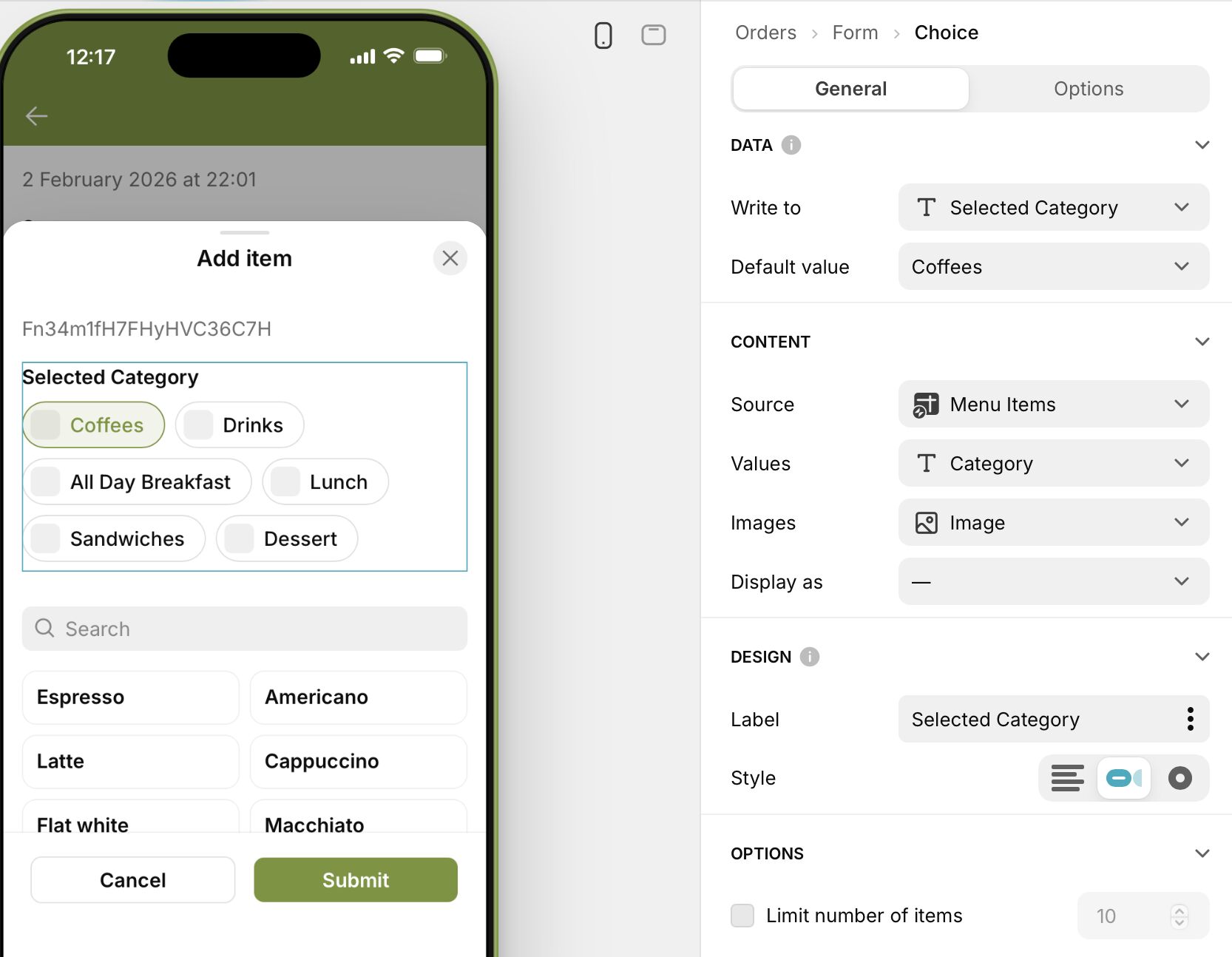

Default is not an option in a custom form because a custom form is nothing more than a detail screen that shows whatever value is in the table. If the column value is empty, then the entry component is going to be empty. If the column is pre-populated with something, before you open the form, then that’s what you will see in the entry component. If you want default values, you will need to set them before the form opens.
Gotcha. Did that by writing a default “Category” to the User table, and then I update it as the user changes category. Works nicely.
I have another problem now. One of the edit forms had white fields on a white background but in a newer version of the program the same screen has grey fields on a white background. I am not certain if I did something to create the new background, but can I change it? I prefer the white on white. Thanks

