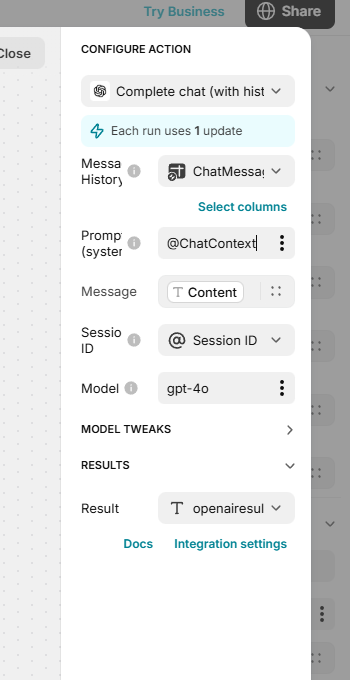
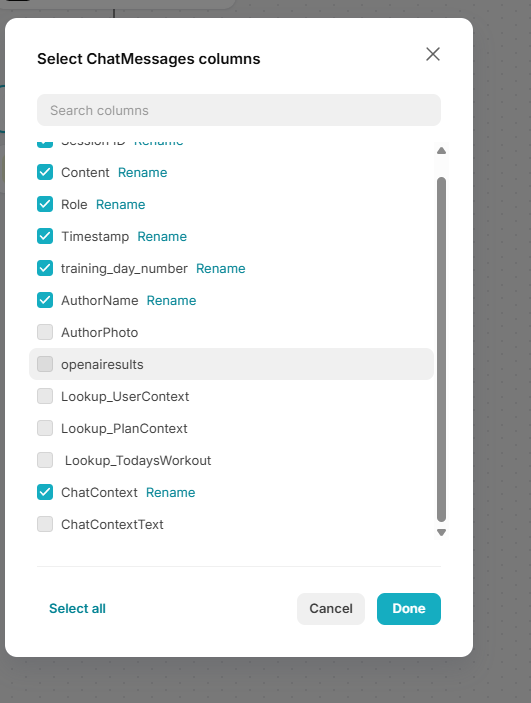
I am building a chat bot and trying to set up some user context into the prompt in the Complete Chat with history action. I want to reference a Template column which is made up of multiple user data fields to create a functioning prompt. My question is , what is the best way to integrate this prompt into the API call . Do I simply reference my ChatContext column by selecting the check box in Chat set up,or do I reference the Template column using @ChatContext in the prompt field itself? See both screen shots for different methods. I had been trying both methods simultaneously but I think I may have been overloading my prompt and API call.
Thanks in advance!
I recommend you watch the following video so that you understand how the OpenAi integration works, once you understand it you will be able to perform the task you want.
You should use @ChatContext in the Prompt (system) field itself (as seen in your first screenshot). You should uncheck the box for ChatContext inside the “Message History” setup.
Here is the breakdown of why and how to do this, including the specific timestamps from the tutorial where this configuration happens.
1. The Difference: System Prompt vs. Message History
To understand the setup, it helps to distinguish between the “Identity” of the bot and the “Conversation” log.
The System Prompt (The Identity)
What it is: This is the “God Mode” instruction. It tells the AI who it is, what data it has access to, and how to behave before a single word is spoken.
Your Setup: This is where your Template column (@ChatContext) belongs. You only want to send this instruction once per API call as the guiding rule.
The Message History (The Log)
What it is: This is strictly the transcript of the conversation (User said X, Bot said Y).
Why uncheck the box: If you check the ChatContext box inside the history setup, Glide sends your massive template attached to every single past message. This confuses the AI (because it sees the instructions repeated 20 times) and burns through your token limit rapidly.
2. Configuration Steps & Timestamps
Timestamp: 24:46 - 25:05
This is the specific section where the narrator configures the final Complete chat action with the correct data sources.
Step 1: Configure Message History
Timestamp 24:55 : The narrator selects the source for Message History.
Action: In your setup (your second screenshot), ensure you select the relation to your messages, but UNCHECK ChatContext. Only keep Content, Role, Timestamp, and Session ID) checked. This keeps the history clean.
Step 2: Configure System Prompt
Timestamp 24:58 : The narrator moves to the Prompt (system) field.
Action: He clicks the data icon to link a specific column (BOT > Prompt). This confirms that the Prompt field is the correct place for your template.
Your Action: In your setup (your first screenshot), leave your @ChatContext exactly where it is in the Prompt (system) field (but make sure you point to the column, not just @ without linking).
Summary Checklist
Prompt (system) field:DO put your @ChatContext here.
Message History settings:UNCHECK ChatContext. Only check the message content, role, and timestamp.

 DO put your
  UNCHECK ChatContext. Only check the message content, role, and timestamp.