Subject: Generate CSV Action: Missing Core Table (Students) in Source data Dropdown
Hello,
I am building an app and attempting to set up an action to export data to a CSV file.
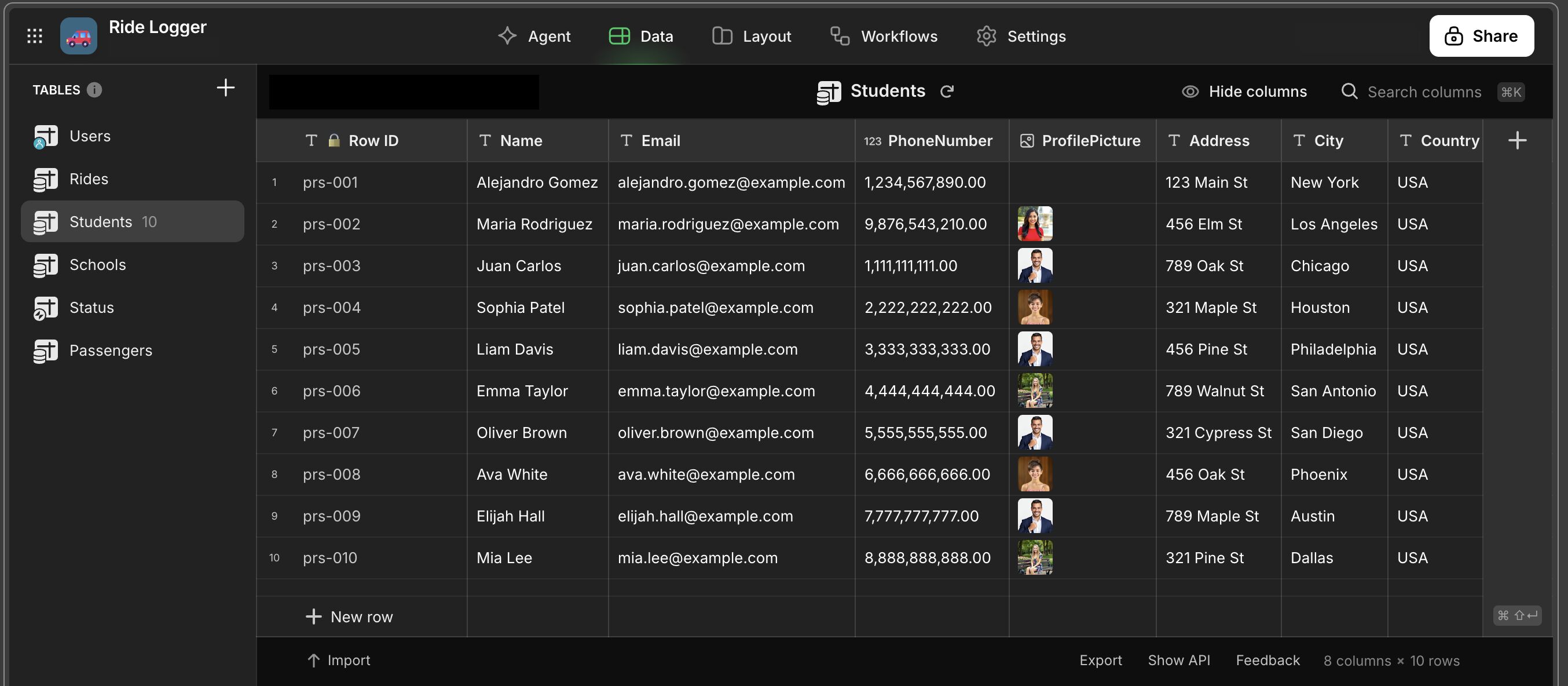
I have a dedicated table named Students which contains a basic list of records with no computed columns, relations, or complex linking. It is a data table (all base-level columns) in my app, visible in the data editor alongside Users, Rides, and Status.
 The Problem
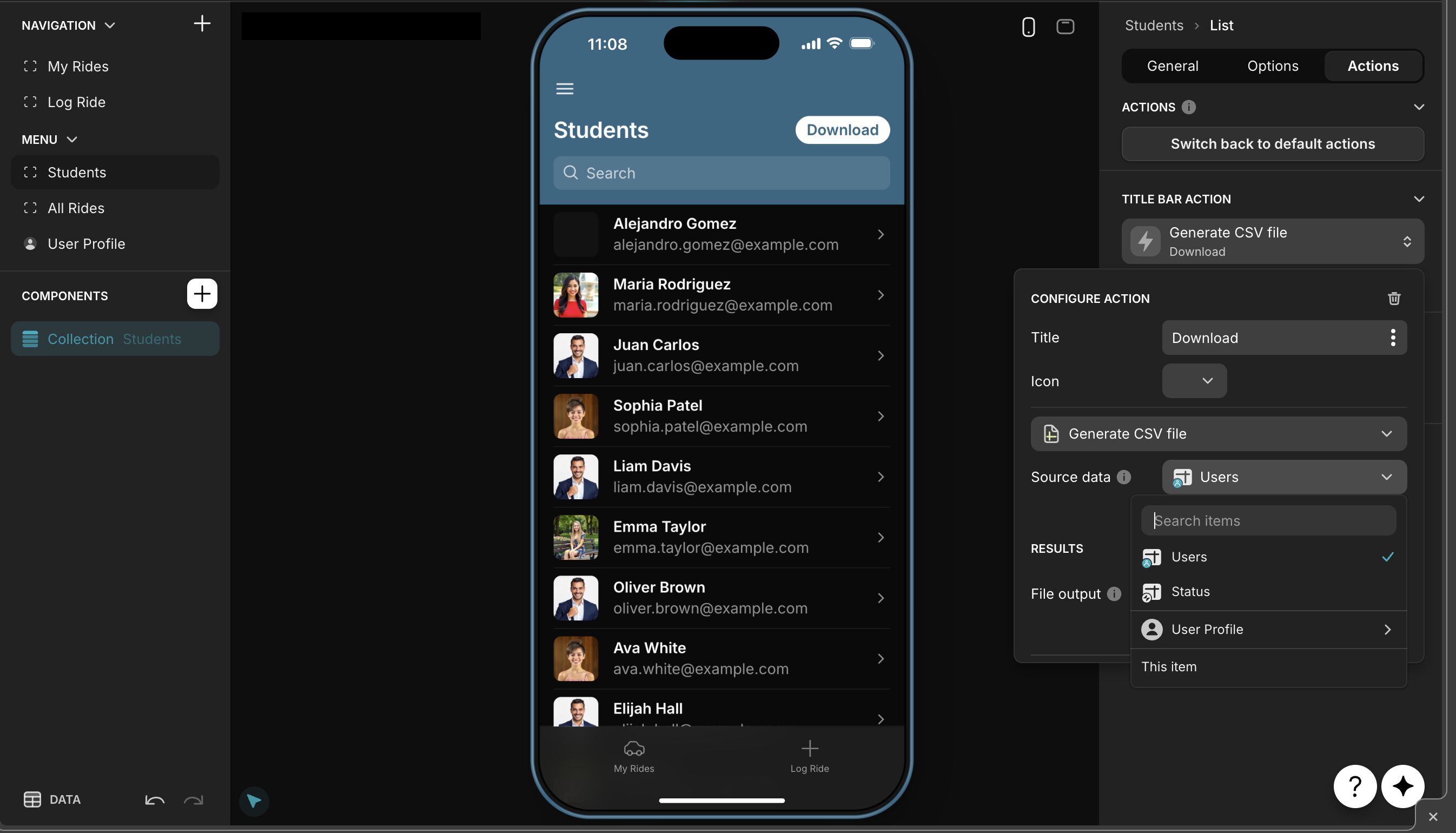
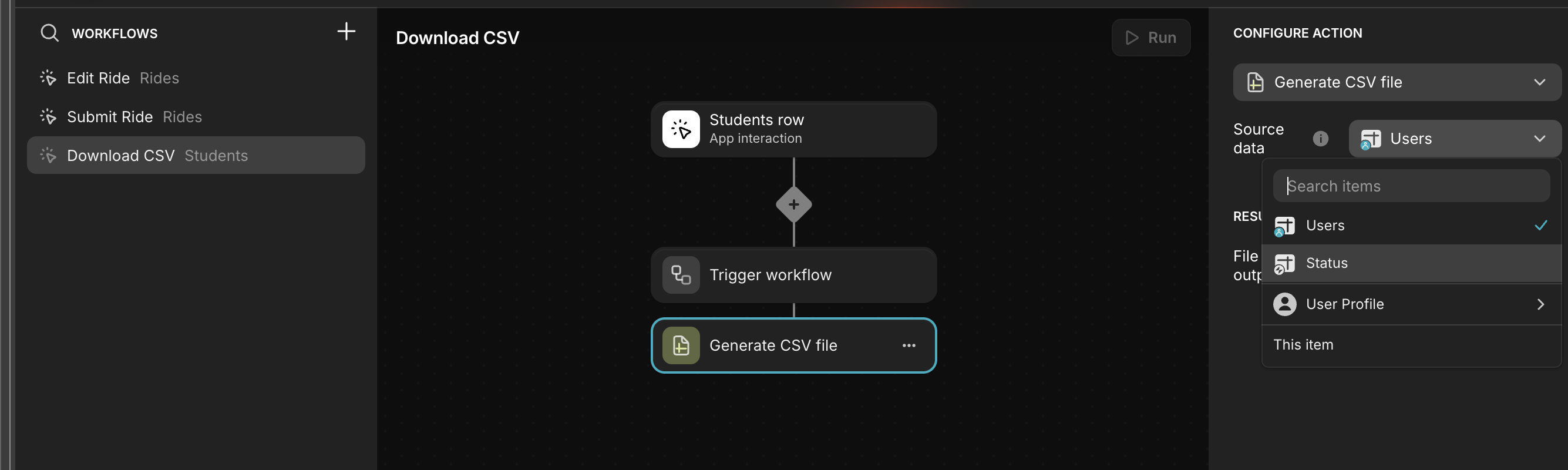
When configuring the Generate CSV action on one of my screens, my Students table does not appear in the Source data dropdown list.
The only options available in that dropdown are:
Users(My primary user table)Status(Another core table, no computed columns)User Profile(Usually the current user’s row)- A few other Relation/Query columns (e.g.,
Passenger2Relnfrom the attached screenshot)
 My Inquiry
Since both my Users and Status tables appear as available sources, why is my simple, core Students table missing?
I’d like ability to export the entire list of data from the Students table and other tables in the app. I was wondering if someone can help to clarify:
- What specific conditions must a table meet to appear in the
Source datadropdown for theGenerate CSVaction? - Is there a setting on the
Studentstable itself that I need to enable for it to be recognized as an exportable source?
Thanks in advance for any assistance in clarifying why a basic table like Students (and others in my app) are not available for CSV export!